
How to Automate LinkedIn Carousels with n8n and Contentdrips API
Usama Khalid
In the fast-paced world of social media, LinkedIn carousels are an engaging way to share multi-slide content that captures attention and conveys information effectively. However, creating these carousels manually can be time-consuming and repetitive.
By combining n8n, a powerful open-source workflow automation tool, with the Contentdrips API, you can automate the creation of professional LinkedIn and Instagram carousels, saving time and ensuring consistency.
This guide walks you through the process step-by-step, from setup to execution, and explores use cases and troubleshooting tips.
What is n8n?
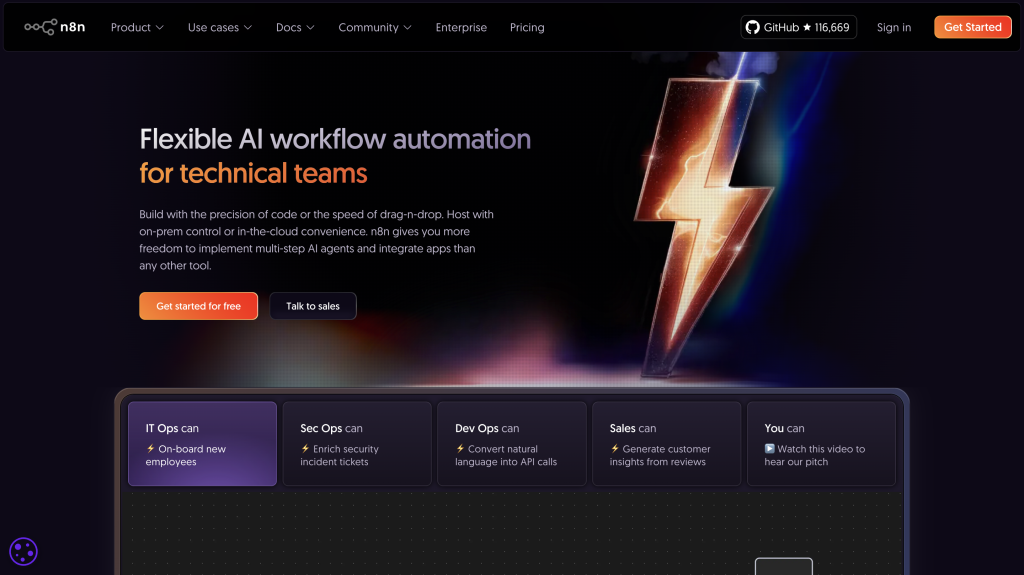
n8n is an open-source workflow automation platform that connects various applications and services using nodes. It offers a visual interface for building workflows, supports over 400 integrations, and allows for custom code when needed. Its flexibility makes it ideal for automating tasks like generating social media content. You can self-host n8n or use their cloud offering for convenience (n8n.io).
What is Contentdrips?
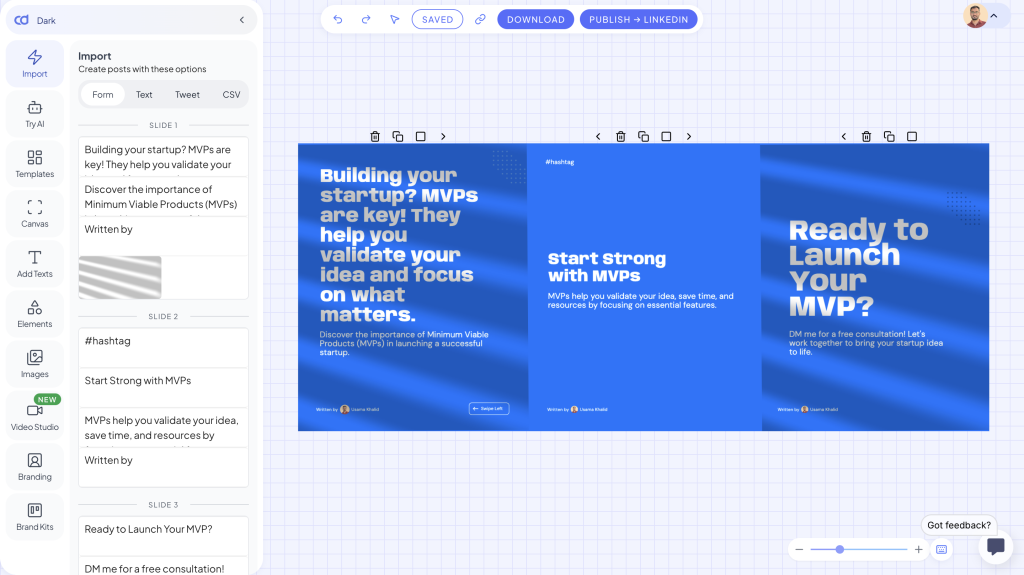
Contentdrips is a content creation platform designed for crafting social media posts, particularly carousels for LinkedIn and Instagram. It provides thousands of customizable templates and an API for integrating with tools like n8n. With Contentdrips, you can create visually appealing carousels by inputting text, images, and branding details (contentdrips.com).
Why Automate LinkedIn Carousels?
Automating carousel creation offers several benefits:
- Time Efficiency: Eliminate repetitive design tasks.
- Consistency: Maintain uniform branding across posts.
- Content Repurposing: Transform blog posts, Twitter threads, or AI-generated content into carousels.
- Scalability: Generate multiple carousels for large-scale campaigns.
This automation is particularly useful for marketers, content creators, and businesses aiming to maintain a robust social media presence.
Getting Started
1. Sign Up for Contentdrips
- Visit app.contentdrips.com and create an account.
- Navigate to the API Management section (app.contentdrips.com/api-management) to generate your API token. This token authenticates your requests in n8n.
2. Install n8n
- Install n8n on your system by following the instructions on n8n.io. You can self-host using Docker or opt for n8n’s cloud service.
- Install the Contentdrips community node:
- In n8n, go to Settings > Community Nodes.
- Search for
n8n-nodes-contentdripsand install it. - Alternatively, run
npm install n8n-nodes-contentdripsin your n8n directory (typically~/.n8n).
Step | Action | URL/Location |
|---|---|---|
Sign Up | Create a Contentdrips account | |
Get API Key | Generate API token | |
Install n8n | Set up n8n | |
Install Node | Install Contentdrips node |
|
Creating a Template in Contentdrips
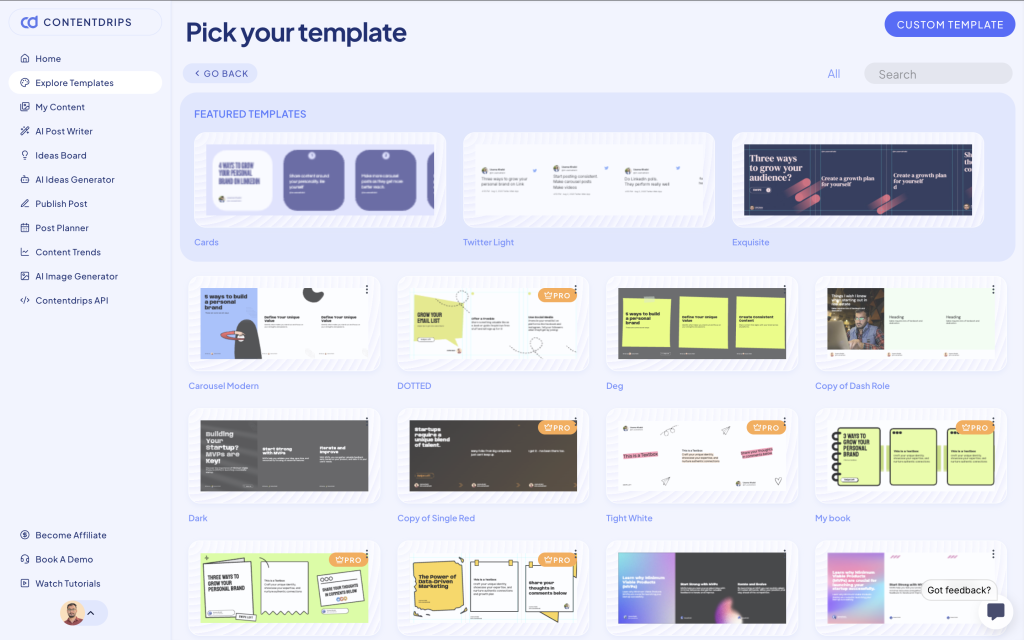
1. Choose or Create a Template
- Log in to Contentdrips and access the template library.
- Browse thousands of pre-designed templates or create a custom one.
- Ensure your template has at least three slides, each with labeled textboxes:
- Most templates come with default labels like "heading" and "description."
- If labels are missing, right-click a textbox in the Contentdrips editor and assign labels (e.g., "heading" for titles, "description" for body text). Each slide should have at least one labeled textbox, though two (heading and description) are common.
2. Get the Template ID
- After selecting or creating a template, note its ID from the URL. For example, in
https://app.contentdrips.com/canvas?template=150113, the template ID is150113.
Requirement | Details |
|---|---|
Minimum Slides | At least 3 slides per template |
Textbox Labels | At least one per slide ("heading" or "description") |
Template ID | Found in the URL, e.g., |
Setting Up the n8n Workflow
1. Add the Contentdrips Node
- In n8n, create a new workflow.
- Search for "Contentdrips" in the node catalog and add the Contentdrips node.
2. Configure the Node
- Select the "1-click generate carousel" operation.
- Provide the following:
- API Token: Your Contentdrips API key.
- Template ID: The ID of your chosen template (e.g.,
150113). - Output Format: Choose
pngfor individual slide images orpdffor a single document. - Content Input: Input content in one of two ways:
- Form Method: Enter headings, descriptions, and image URLs for each slide directly in the node’s form interface. This is ideal for simple setups.
- JSON Method: Use a JSON object for structured content, including intro, main, and ending slides.
Example JSON Input
1{2 "intro_slide": {3 "heading": "Welcome",4 "description": "This is the intro slide",5 "image": "https://example.com/intro.jpg"6 },7 "slides": [8 {9 "heading": "Slide 1",10 "description": "Content for slide 1",11 "image": "https://example.com/slide1.jpg"12 },13 {14 "heading": "Slide 2",15 "description": "Content for slide 2",16 "image": "https://example.com/slide2.jpg"17 }18 ],19 "ending_slide": {20 "heading": "Thank You",21 "description": "This is the ending slide",22 "image": "https://example.com/ending.jpg"23 }24}
3. Wait Settings
- Configure wait settings to check the job status every 15-20 seconds. This ensures the workflow waits until the carousel is generated (typically 2-5 minutes).
4. Content Updates
- Use the content update feature to dynamically modify template elements (e.g., text or images) other than carousel inputs.
- Specify the label name (e.g., "heading") and the new value in the content update section. This is useful for updating elements beyond the standard carousel inputs, such as adding a new logo or changing a specific text field.
Configuration | Description | Example |
|---|---|---|
API Token | Authenticates requests | Generated from Contentdrips |
Template ID | Identifies the template |
|
Output Format | Format of the carousel |
|
Carousel Content Input | Method to provide content | Form or JSON |
Wait Settings | Job status check interval | Every 15-20 seconds |
Content Updates | Dynamic element updates | Label: "hashtags", Value: "#branding" |
Executing the Workflow
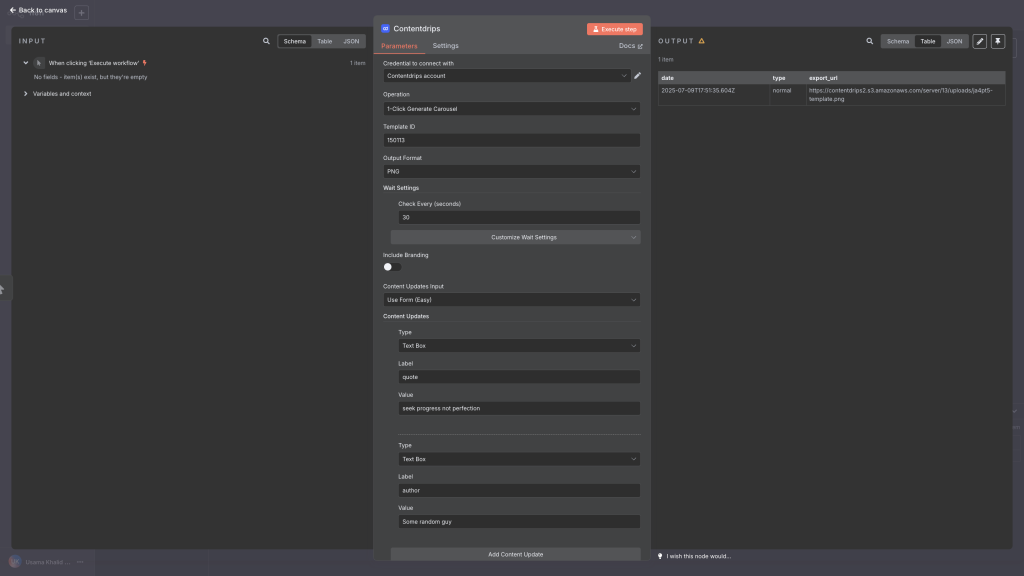
1. Run the Workflow
- Click "Execute Workflow" in n8n to start the carousel generation.
- The Contentdrips node sends the request to the API, which processes the template and content.
2. Output
- Upon completion, the node returns a response with:
- Date: Timestamp of the job completion.
- Type: Indicates the output type (e.g.,
carousel). - Export URLs: Links to the generated carousel slides or PDF.
- Example output:
date: 2025-07-09T17:51:35.604Z type: carousel export_url: [ "https://contentdrips2.s3.amazonaws.com/server/13/uploads/ja4pt5-template.png", "https://contentdrips2.s3.amazonaws.com/server/13/uploads/ja4pt5-template.png", "https://contentdrips2.s3.amazonaws.com/server/13/uploads/ja4pt5-template.png" ]
Use Cases
1. Blog to Carousel Automation
- Workflow: Use an RSS trigger to fetch new blog posts, process them with a code node to extract key points, and pass the data to the Contentdrips node to generate a carousel.
- Example: Convert a blog post into a carousel summarizing its main points, then post it to LinkedIn using a LinkedIn API node.
2. Social Media Graphics
- Workflow: Set up a schedule trigger to run daily, fetch data from Google Sheets (e.g., quotes or stats), generate a carousel with Contentdrips, and post to LinkedIn or Instagram.
- Example: Create daily motivational quote carousels for consistent social media engagement.
3. AI-Generated Content
- Workflow: Use an AI node (e.g., GPT) to generate carousel content based on a topic, format it as JSON, and pass it to the Contentdrips node.
- Example: Generate a carousel about “Top 5 Marketing Tips” using AI, then automate its creation and posting.
Use Case | Trigger | Input Source | Output | Posting |
|---|---|---|---|---|
Blog to Carousel | RSS Trigger | Blog content | Carousel | LinkedIn API |
Social Media Graphics | Schedule Trigger | Google Sheets | Carousel | LinkedIn/Instagram |
AI-Generated Content | Manual/AI Trigger | AI-generated JSON | Carousel | Social Media |
FAQs
How do I get my API key?
- Generate it from app.contentdrips.com/api-management.
Can I use my own images?
- Yes, provide image URLs in the Form or JSON input.
What if my template doesn’t have labels?
- Add labels by right-clicking textboxes in the Contentdrips editor and assigning "heading" or "description."
How long does it take to generate a carousel?
- Typically 2-5 minutes. Use wait settings to check job status.
Can I automate posting to LinkedIn?
- Yes, integrate a LinkedIn API node to post the generated carousel directly.
What if I encounter errors?
- Common issues include authentication errors, missing template IDs, or unlabeled textboxes. Check the Contentdrips documentation (app.contentdrips.com/api-management) or n8n community forums (community.n8n.io) for support.
Troubleshooting
- Authentication Error: Verify your API token is correct.
- Template Not Found: Ensure the template ID matches an existing template.
- Label Not Found: Confirm all textboxes have appropriate labels.
- Job Timeout: Increase the wait interval or check Contentdrips server status.
Conclusion
Automating LinkedIn carousels with n8n and the Contentdrips API streamlines content creation, enabling you to maintain a consistent and engaging social media presence. Whether you’re repurposing blog posts, generating daily graphics, or using AI for content creation, this setup offers flexibility and efficiency. By following the steps outlined above, you can set up your workflow in minutes and start producing professional carousels effortlessly.
For further assistance, refer to:
- Contentdrips Documentation: app.contentdrips.com/api-management
- n8n Community Forum: community.n8n.io
- Contentdrips n8n Node: npmjs.com/package/n8n-nodes-contentdrips
Start automating your LinkedIn carousels today and grow your content strategy!